Ssms

SSMS Tips and Tricks 7-13: Working in English and another language

SSMS Tips and Tricks 7-13: Working in English and another language

I’ve been learning Mandarin (Chinese) for many, many years. I’m determined to become as fluent in speaking as I can, but to also be reasonable at reading and writing.

One important aspect of doing this, is to make sure you use the language you are learning as much as possible.

A great advantage of SSMS is that it is available for use in many languages. Yet when you do this, SSMS ends up supporting both the target language and English. That means that I can work part of the time in Chinese (to force myself to learn) and the rest of the time in English.

2025-10-22
SSMS Tips and Tricks 7-11: Accessing preview features

SSMS Tips and Tricks 7-11: Accessing preview features

SSMS has a concept of channels that are used to control releases of the product. You can find them described here .

You can have both Release and Preview channels installed on the same system.

Most people who are using the product in production scenarios want to have a supported stable release. They should use the Release Channel .

Other people, however, are keen to try the latest features as soon as they are available, even if they aren’t at a Release quality bar yet. They can use the Preview Channel .

2025-10-20

SSMS Tips and Tricks 7-11: Providing feedback directly to the SSMS team

SSMS Tips and Tricks 7-11: Providing feedback directly to the SSMS team

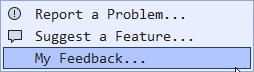
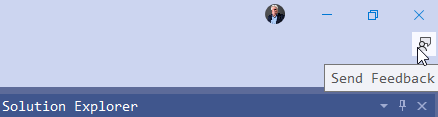
In the current version of SSMS, there is an option to provide feedback directly to the SSMS team. While you can just browse to the website, you can click this link in the top right-hand side.

At that point, you are given three options:

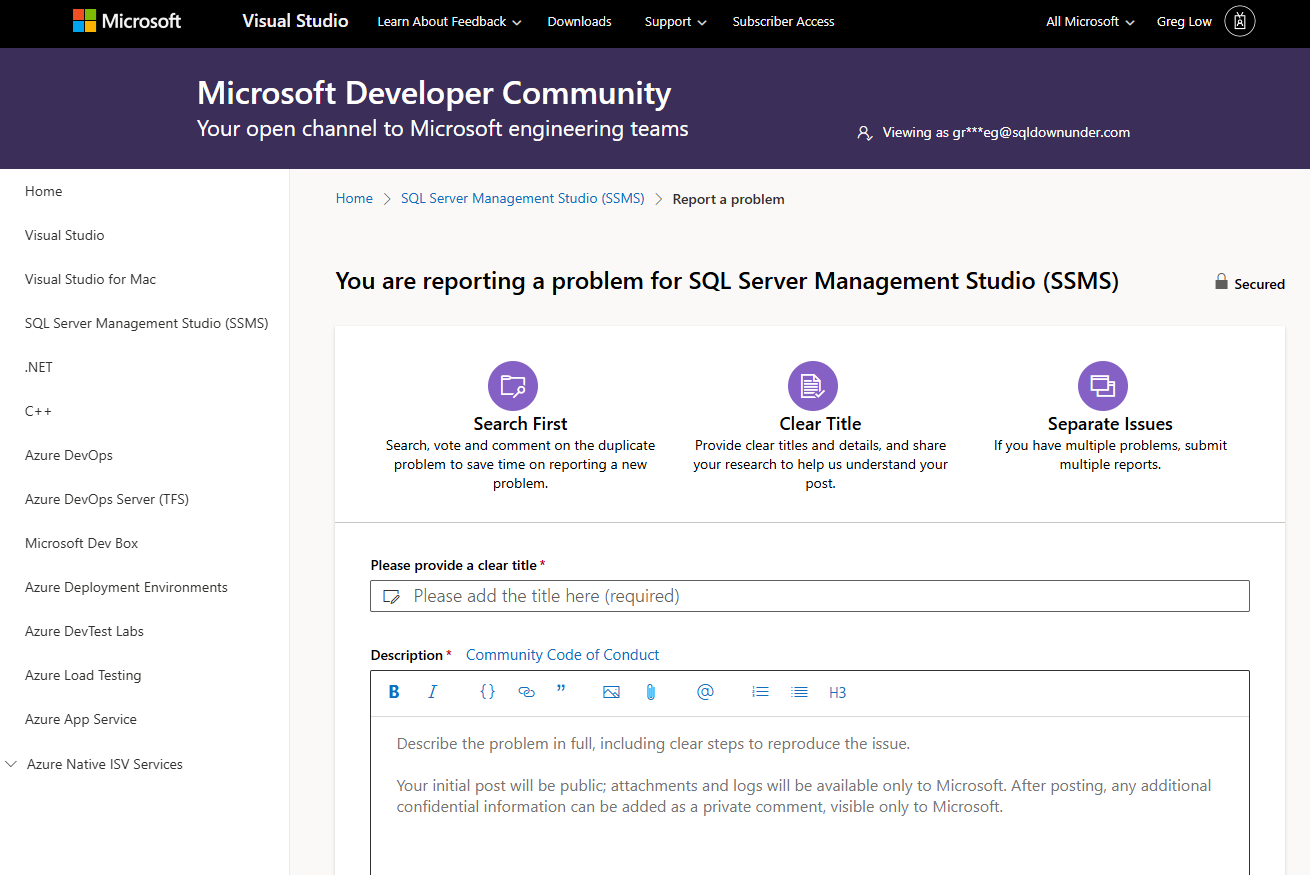
The first two end up in very similar locations, just with a different preselected context:

Make sure you search first to see if the problem has already been reported. As soon as you provide a title for your issue, the site does a search and shows you issues that are potentially related. If you see the same issue, you can click on it to go to the discussion and add your own comments there.   If the issue hasn’t already been reported, you can create a new issue. Make sure you provide a clear title, then detailed information about how to reproduce the issue. Finally, before submitting, make sure you indicate the impact you are experiencing:

2025-10-18

SSMS Tips and Tricks 7-10: Setting startup options

SSMS Tips and Tricks 7-10: Setting startup options

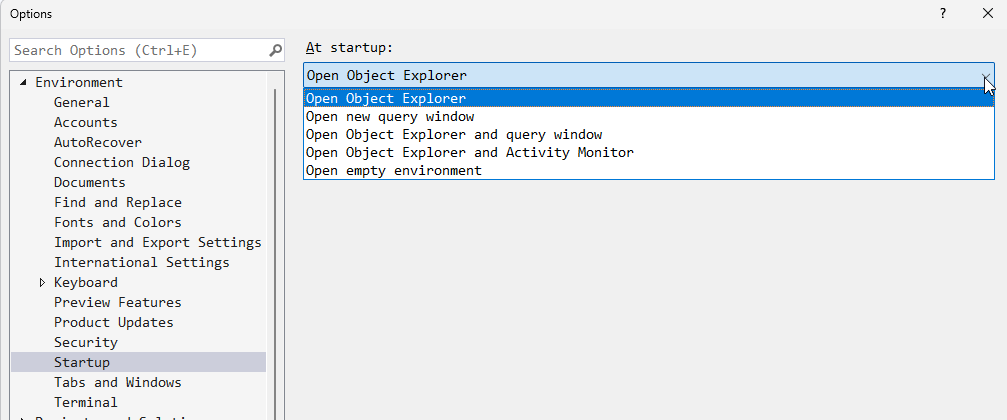
When you start SSMS, the default action at startup is to open Object Explorer. But you can change that behavior. The options to do that are in Tools. Options, then Environment, and Startup.

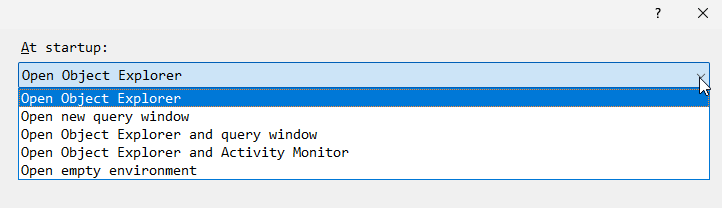
These are the options that are provided:

One that is often surprisingly useful is to open an empty environment. You might want to use SSMS to edit files without any connection to a database and not want to waste time waiting for SSMS to open the connection dialog, just for you to close it again.

2025-10-16

SSMS Tips and Tricks 5-9: Closing idle connections

SSMS Tips and Tricks 5-9: Closing idle connections

One challenge that I find with T-SQL is that there’s no 100% reliable way to drop a database.

I wish I was joking.

If you execute DROP DATABASE, the command will fail if anyone is connected to the database. The way that we normally drop databases is as follows:

USE master;
GO  

IF EXISTS (SELECT 1 FROM sys.databases AS d WHERE d.[name] = N'somedb')
BEGIN
    ALTER DATABASE somedb SET SINGLE_USER WITH ROLLBACK IMMEDIATE;
    DROP DATABASE somedb;
END;

That mostly works, but the problem is that I need to execute the command from the master database. That means that when I set the database to single user, I don’t know that I’m the single user. What I’ve seen happen sometimes, is that the Intellisense system in SSMS is reading further down my script, where I’m perhaps recreating the database, and it’s maintaining a connection to the DB.

2025-10-14

SSMS Tips and Tricks 8-6: Using the PowerShell terminal

SSMS Tips and Tricks 8-6: Using the PowerShell terminal

SSMS used to have a built-in web browser. That’s now gone.

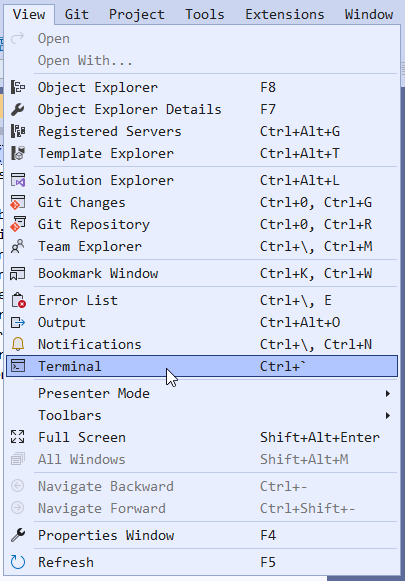
What was added, though, is a Developer PowerShell window. On the View menu, you can choose Terminal.

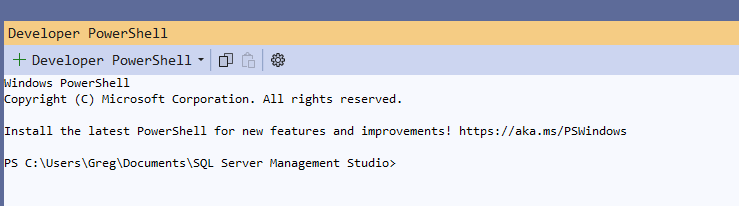
This will then open a Developer PowerShell window:

Note that you can change the version of PowerShell that’s launched, from the drop-down. But the Settings option will take you to the Tools Options page where the Terminal can be configured.

2025-10-12

SSMS Tips and Tricks 8-5: Undock tabs and windows and using multiple screens

SSMS Tips and Tricks 8-5: Undock tabs and windows and using multiple screens

Like Visual Studio that it’s based upon, SSMS is very flexible when working with query windows and tabs.

Most people realize that you can undock and move tabs and windows around. Usually they discover that by accident and then realize that the Reset Window Layout option in the Window menu is helpful.

But one option I’ve found that many people don’t seem to realize is that you can undock just a single query window and move it outside the bounds of SSMS. You can even place it across on another screen if you have multiple screens.

2025-10-10

SSMS Tips and Tricks 8-4: Using document groups

SSMS Tips and Tricks 8-4: Using document groups

In a previous post, I showed how you might use split windows to allow you to work on different parts of a single query at the same time.

But what if you need to work on two queries and see parts of both of them?

That’s where document groups can help you. You can create both vertical and horizontal groups. For me, the most useful is typically side-by-side vertically, for when I’m comparing two sections of code.

2025-10-08

Fix - Issues when Installing SSMS on an Offline Virtual Machine

Fix - Issues when Installing SSMS on an Offline Virtual Machine

I recently had to install SQL Server Management Studio (SSMS) offline on a virtual machine. The machine was running Windows Server 2022.

I struggled for many hours, and came to the conclusion that this should not be as difficult as it was. I hope this information helps someone else.

I followed the instructions provided for offline installation from here: Create an Offline Installation of SQL Server Management Studio . Erin Stellato did a good job in that article and that almost could have worked but there were a few issues.

2025-10-06

SSMS Tips and Tricks 8-2: Resetting the window layout

SSMS Tips and Tricks 8-2: Resetting the window layout

One of the problems with applications that have highly-configurable user interfaces (UI) is that users can end up configuring them in ways they hadn’t intended, and then don’t know how to get back to where they were.

I remember the first time that I was at a session with a presenter from Microsoft showing the (at the time) new personalization options in ASP.NET. You could build a website and let the user determine how the site should be laid out, to suit themselves.

2025-10-04