Ssms

SSMS: Extended Properties for SQL Server Objects

SSMS: Extended Properties for SQL Server Objects

I started working with SQL Server in 1992, but all through the 1980’s and 1990’s, I was also working with Progress 4GL. I thought it was the best of the character-based 4GLs but unfortunately, they did a poor job of migrating to Windows and we decided to stop using the product.

One thing that I used to love with Progress though is that the metadata for each column in the database was much richer than what is present in SQL Server. In fact, Microsoft Access was probably closer to it in that regard. It’s something I really missed when moving to SQL Server. In Progress, when I defined a column, I could also define things like:

2018-03-22
SSMS: Add columns to Object Explorer Details window

SSMS: Add columns to Object Explorer Details window

I’ve mentioned in an earlier article about scripting multiple objects at once, how useful the Object Explorer Details window is, and how little understood it is.

Another useful option in it, is that the displayed columns can be changed. In particular, you can add columns that would be useful. Let’s look at an example.

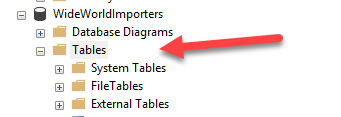
In Object Explorer, I’ve expanded the WideWorldImporters database and clicked on the word Tables:

Next, I hit the F7 key, and the Object Explorer Details pane opens showing this:

2018-03-15

SSMS: Cleaning up the Scroll Bar in SQL Server Management Studio

SSMS: Cleaning up the Scroll Bar in SQL Server Management Studio

It’s great that SQL Server Management Studio has moved into the latest Visual Studio shell. Unfortunately, there are one or two things that are a little harder at first for people who want to use SSMS to write T-SQL. One that was driving me crazy was the scroll bar. Visual Studio tries to give so much information on that bar, about what’s changed, where the insertion carat is, etc. The problem with this is that I often now can’t even find the handle when I want to scroll the window. For example, how do you grab the handle with your mouse and slide the window when it looks like this?

2018-03-08

SSMS: Import and Export Settings in SQL Server Management Studio

SSMS: Import and Export Settings in SQL Server Management Studio

Whenever I need to work on a new laptop or server, or whenever I change versions of SQL Server Management Studio, I kick myself for not remembering to export my settings, so I can import them again.

I spend quite a bit of effort getting SSMS configured the way I want, so it only makes sense to save the settings. Saving them isn’t perfect but it’s far better than not having done it.

2018-03-01

SSMS: Change the Status Bar in SQL Server Management Studio (SSMS)

SSMS: Change the Status Bar in SQL Server Management Studio (SSMS)

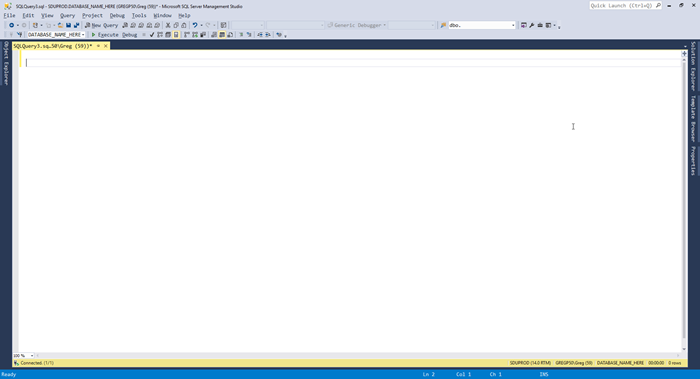
The status bar at the bottom of a query window in SQL Server Management Studio contains a wealth of information in its default configuration.

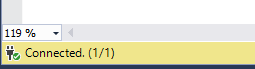
The bottom left shows the connection state:

I’ll talk about connection management more in a later post. The bottom right also shows quite a bit:

In this case, it’s showing me that I’m connected to a server called SDUPROD; it’s running v14 of SQL Server (ie: SQL Server 2017); I’m logged on as GREGP50\Greg; my spid (or session ID) is 68; and I’m connected to the master database.

2018-02-22

SSMS: Setting Environment Font in SQL Server Management Studio (SSMS)

SSMS: Setting Environment Font in SQL Server Management Studio (SSMS)

I’ve been very lucky over the years because I haven’t needed to wear glasses. Every now and then I’ve got some because I thought it might help with reading but then I find them more inconvenient than helpful. I’ve had one eye long-sighted and the other short-sighted. That’s been a really useful thing in day to day life.

However, where this comes unstuck is on modern laptops. There seems to be a current trend to pushing more and more pixels into the same size laptop screens but the applications aren’t helping to deal with that.

2018-02-15

SSMS: Reset Window Layout in SQL Server Management Studio

SSMS: Reset Window Layout in SQL Server Management Studio

One of the problems with applications that have highly-configurable user interfaces (UI) is that users can end up configuring them in ways they hadn’t intended, and then don’t know how to get back to where they were.

I remember the first time that I was at a session with a presenter from Microsoft showing the (at the time) new personalization options in ASP.NET. You could build a website and let the user determine how the site should be laid out, to suit themselves.

2018-02-08

SSMS: Toggle Full Screen Mode in SQL Server Management Studio (SSMS)

SSMS: Toggle Full Screen Mode in SQL Server Management Studio (SSMS)

SQL Server Management Studio (SSMS) is a great tool and it has lots of helpful menu items and toolbar items. Unfortunately, all these items take up screen real estate.

You can see that the default screen layout could be considered a bit cluttered if you really just want to focus on the particular query that you’re working on.

A keyboard shortcut can help here. Alt-Shift-Enter toggles full screen mode in SSMS.

2018-02-01

SSMS: When did my T-SQL query finish?

SSMS: When did my T-SQL query finish?

It’s likely that everyone who uses SQL Server Management Studio (SSMS) knows how to tell how long a query ran for. You can see it in the bottom right of the status bar when a query finishes.

But one question that often comes up with a long-running query is when did my query finish?

That’s not in the status bar and many people don’t seem to be aware that you can find it out.

2018-01-25

SSMS: Using the Clipboard Ring in SSMS

SSMS: Using the Clipboard Ring in SSMS

Two key combinations used by SQL Server T-SQL developers every day are Ctrl-C and Ctrl-V for copy and paste.

But many users of SQL Server Management Studio (SSMS) don’t realize that it has a clipboard ring and can deal with several objects in the clipboard at the same time.

Let’s see an example.

In this screen shot, I’ve opened a query window with the source code of the AnalyzeTableColumns procedure from SDU Tools.

2018-01-18