Ssms

SSMS: Running SQL Server Management Studio as someone else

SSMS: Running SQL Server Management Studio as someone else

You don’t always want to run SQL Server Management Studio (SSMS) as your current login for Windows.

Now if all you want to do is to use a SQL Server login, then that’s easy. When you connect to a server in Object Explorer, or when you start a new Database Engine query, you can just choose SQL authentication instead.

But three other scenarios commonly occur.

If you need to run SSMS as an administrator on a machine with UAC, you can do this:

2018-05-11

SSMS: Adding multi-level undo, redo to the SSMS toolbar

SSMS: Adding multi-level undo, redo to the SSMS toolbar

Years ago, I had the privilege of presenting “what’s new in SQL Server 2012” sessions at many locations around the world. When you present sessions, you can sometimes learn as much as you teach. What I learned while delivering those sessions is that the product group sees what’s important in a release very differently to what the attendees do.

Each time there’s a new version of SQL Server, there will normally be three or four marketing pillars (groups of functionality), and each will have about eight to ten bullet points.

2018-05-10

SSMS: Using script projects and solutions in SQL Server Management Studio

SSMS: Using script projects and solutions in SQL Server Management Studio

I’m puzzled that so few people use script projects and solutions when working with SQL Server Management Studio (SSMS).

They are easy to use. Let’s see an example:

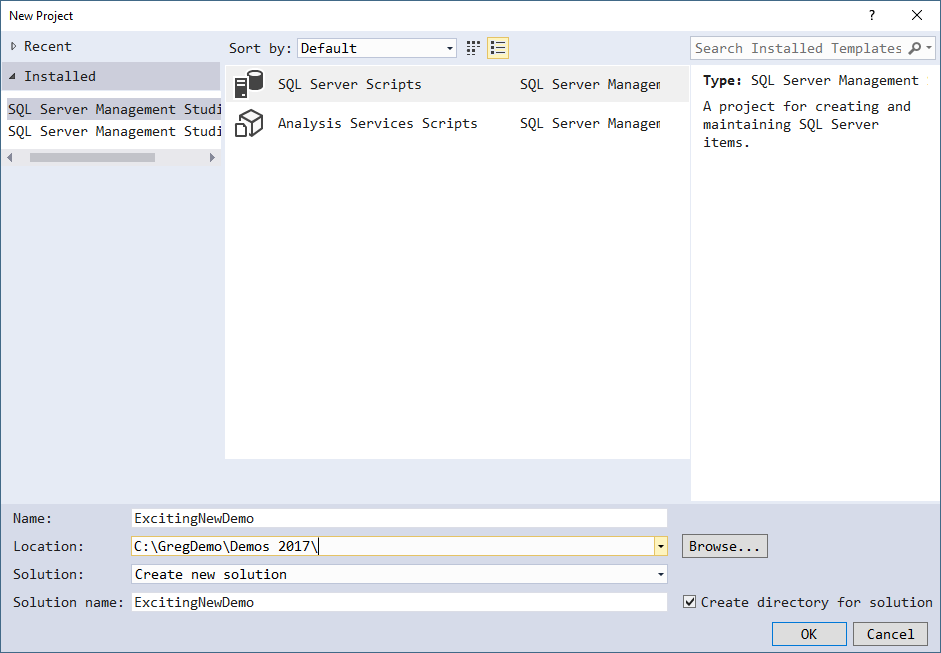
Instead of just starting to create scripts, from the File menu, click New, then Project. You are greeted with the new Project dialog which also allows you to create a solution.

I’ve selected SQL Server Scripts as the project template. Note there is also one for Analysis Services scripts. I’ve named the project, picked a location, and chosen to create a new solution. I might choose to create a solution with a different name if it will contain multiple projects. In this case, I’m not doing that.

2018-05-07

SSMS: Dependency tracking in SQL Server Management Studio

SSMS: Dependency tracking in SQL Server Management Studio

In early versions of SQL Server, the only way to try to track dependencies between tables, procedures, functions, etc. was to use the sp_depends stored procedure. And everyone thought it lied. The real problem was that it didn’t understand partial dependencies and deferred resolution of objects. For example, it got confused if you created a procedure that mentioned a table, then later created the table.

SQL Server 2012 introduced far superior dependency views, and SQL Server Management Studio (SSMS) now shows dependencies using those views under the covers.

2018-05-04

SSMS: Making sense of the colors in the SSMS scroll bar

SSMS: Making sense of the colors in the SSMS scroll bar

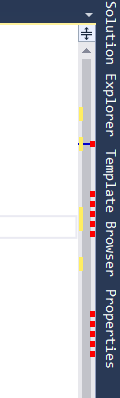
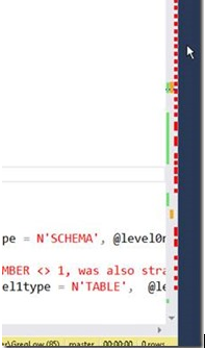
In an earlier post, I described how I didn’t particularly like all the colors that are shown in the scroll bar now in SQL Server Management Studio (SSMS):

In that post, I described how to turn them all off, or at least how to kill off some of them. But, of course they are there for a reason. Instead of turning them all off, you might decide to make sense of what they are there for.

2018-05-03

SSMS: Fix Intellisense and Printer Colors in SQL Server Management Studio

SSMS: Fix Intellisense and Printer Colors in SQL Server Management Studio

SQL Server Management Studio (SSMS) is a highly configurable tool. One of the areas that’s often ignored but which can be quite important is color configuration.

SSMS color codes SQL scripts (and other types of files that it understands) as you type.

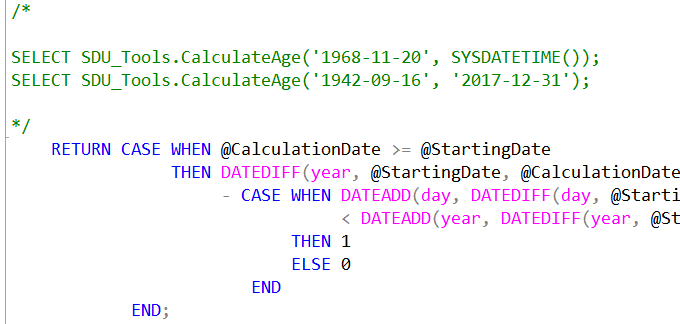
This is really useful but I’ve found on some systems that some of the color selections aren’t great. Here’s an example:

On many systems that I work with, the color for sys.tables in the query above is quite a fluoro green and almost unreadable. But if you don’t like this, you can change it.

2018-04-26

SSMS: Presentation Mode in SQL Server Management Studio

SSMS: Presentation Mode in SQL Server Management Studio

I spend a lot of time delivering presentations of various types. Many of those presentations involve showing code in either SQL Server Management Studio (SSMS) or Visual Studio (VS).

I’ve become quite fast at taking a default setup of SSMS and changing it to the fonts, etc. that I want to use for a presentation. Given how large these fonts are, I don’t want to use them for day to day work.

2018-04-19

SSMS: Create INSERT statements for data in tables using SSMS

SSMS: Create INSERT statements for data in tables using SSMS

Over the years, I’ve had a surprising number of questions on how to output all the data in a table as a series of INSERT statements. SQL Server Management Studio has had the ability to do this for a long time. Here’s an example.

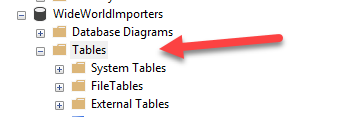
In Object Explorer, I’ve expanded the WideWorldImporters database, then expanded Tables. Where people come unstuck is they right-click the table, and look at the scripting options:

2018-04-12

SSMS: Navigate as you type in sorted SSMS Object Explorer Details pane

SSMS: Navigate as you type in sorted SSMS Object Explorer Details pane

I’ve mentioned a number of times how useful I think the Object Explorer Details panel is in SQL Server Management Studio.

Another option in that panel that might not be so obvious is the sorted navigation. Here’s an example.

I’ve opened WideWorldImporters in Object Explorer, and clicked on the Tables node:

I then hit F7 to open the Object Explorer Details pane, and click the Name heading to sort the table list:

2018-04-05

SSMS: Filters in Object Explorer within SQL Server Management Studio

SSMS: Filters in Object Explorer within SQL Server Management Studio

If you are working with databases with large numbers of objects, the contents of Object Explorer in SQL Server Management Studio can start to become a bit overwhelming. I have to admit that I don’t understand why it doesn’t offer an option to group by schema. That would be helpful.

But you can at least filter by things like schema, when you need to work with a specific set of objects. You’ll notice that if you click on the database name, that the filter in the toolbar is grayed out, but if you click on a node below that like Tables, you can click on the toolbar filter icon. You can also right-click the node and choose to filter:

2018-03-29