Ssms

SSMS: Undock tabs and windows in SSMS to other screens

SSMS: Undock tabs and windows in SSMS to other screens

Like Visual Studio that it’s based upon, SQL Server Management Studio (SSMS) is very flexible when working with query windows and tabs.

Most people realize that you can undock and move tabs and windows around. Usually they do that by accident and then realize that the Reset Window Layout option in the Window menu is helpful.

But one option I’ve found that many people don’t seem to realize is that you can undock just a single query window and move it outside the bounds of SSMS. You can even place it across on another screen if you have multiple screens.

2019-01-31

SSMS: Tab groups in SQL Server Management Studio

SSMS: Tab groups in SQL Server Management Studio

In a previous post, I showed how you might use split windows to allow you to work on different parts of a single query at the same time.

But what if you need to work on two queries and see parts of both of them?

That’s where tab groups can help you. You can create both vertical and horizontal groups. For me, the most useful is typically side-by-side vertically, for when I’m comparing two sections of code.

2019-01-24

SSMS: Split query windows in SQL Server Management Studio

SSMS: Split query windows in SQL Server Management Studio

If you are working with really long script files in SQL Server Management Studio (SSMS), you might need to work on more than one part of the script at the same time. Perhaps you need to work on a function, and also on the code that calls the function.

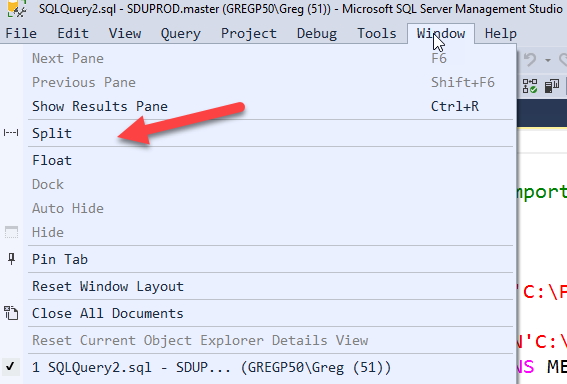
On the Window menu, there is a Split option.

When you first do this, you’ll see a split window with the same query at top and bottom:

2019-01-17

SSMS: Pinned tabs in SQL Server Management Studio

SSMS: Pinned tabs in SQL Server Management Studio

When you get to a large number of query windows or other documents open as tabs in SQL Server Management Studio (SSMS), it can start to be difficult to keep track of them, and to find them when needed.

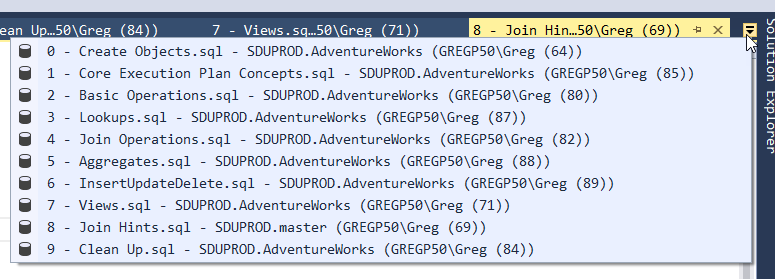
It’s not too bad when you can immediately find the tab that you want in the drop-down list:

But if you have more tabs than are shown in this drop-down list or if, like me, you often end up with many of them without names (as they are temporary), it can get very hard to find the few that you are mainly referring to.

2019-01-10

SSMS: Zooming and navigating execution plans in SSMS

SSMS: Zooming and navigating execution plans in SSMS

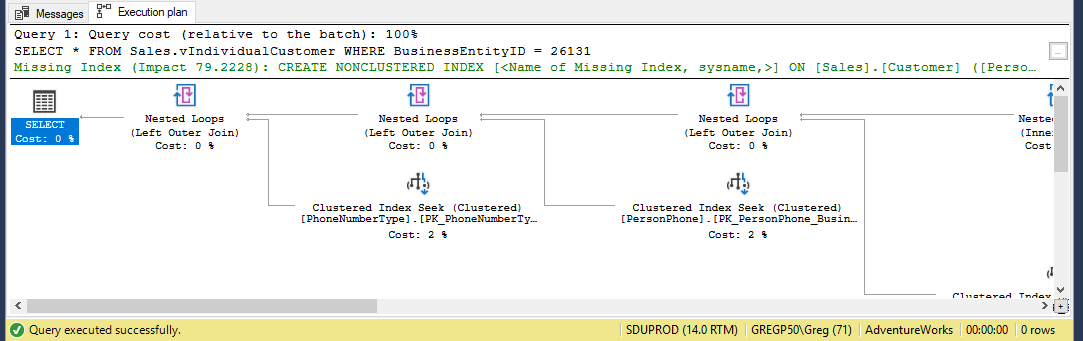
SQL Server execution plans can become quite large. That makes them hard to navigate because you are endlessly scrolling around the results pane in SQL Server Management Studio (SSMS).

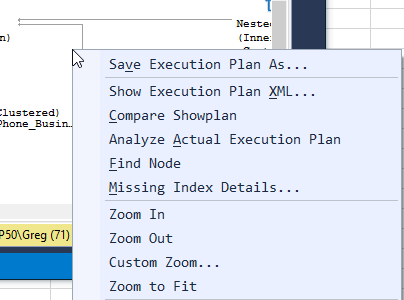
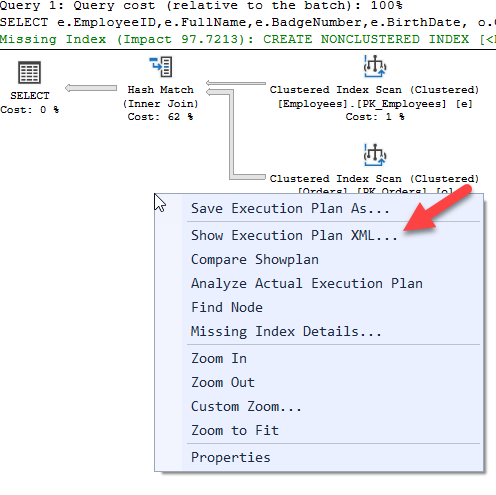
The pane does have some zoom features. Note that if I right-click in the whitespace, I get these options:

So I can zoom in and out, set a custom zoom level, or zoom until the entire plan fits. Generally though, that would make the plan too small to read, as soon as you have a complicated plan.

2019-01-03

SSMS: Saving and sharing SQL Server deadlock graphs

SSMS: Saving and sharing SQL Server deadlock graphs

In an earlier post, I described how query plans could be saved as .sqlplan file, shared, and loaded again in SQL Server Management Studio (SSMS). It’s also possible to extract them out of SQL Server Profiler or Extended Events Profiler.

This is useful, but the same applies to deadlock graphs. SQL Server 2005 added Deadlock graph as a type of event in SQL Server Profiler. (It’s also part of Extended Events Profiler).

2018-12-27

SSMS: Sharing query plans in SQL Server Management Studio

SSMS: Sharing query plans in SQL Server Management Studio

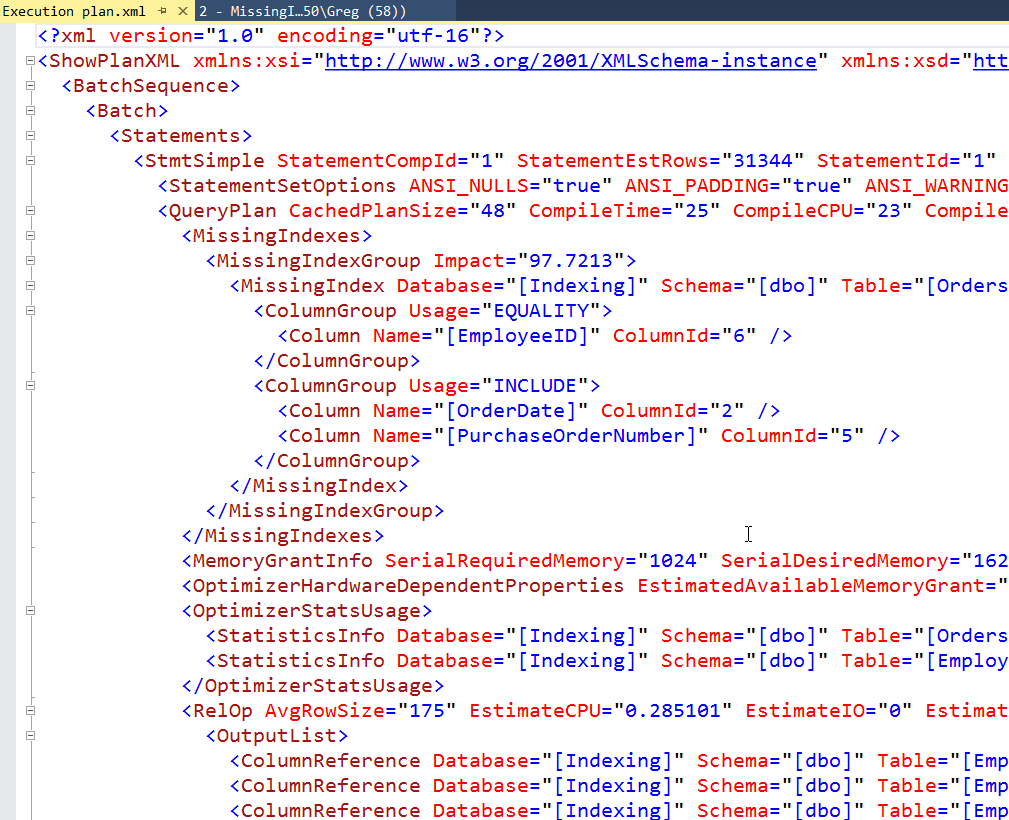
Currently, SQL Server query plans are stored as XML. You can see what they look like by right-clicking in any query plan in SQL Server Management Studio (SSMS), and clicking Show Execution Plan XML:

That will return a whole bunch of XML like this:

It’s important to understand that when SSMS is showing a graphical execution plan, it’s just graphically rendering some XML like the plan above.

The Properties window in SSMS is also showing details extracted from that same XML.

2018-12-20

SSMS: Missing index details in SQL Server Management Studio

SSMS: Missing index details in SQL Server Management Studio

I’ve mentioned before that SQL Server Management Studio (SSMS) is a good tool for analyzing queries, as much as for executing them.

In SQL Server 2005, query plans had missing index details added. When a query plan was created, SQL Server recorded that it thought it could have executed the query better, if only you’d provided it with appropriate indexes. But at that point, the suggestions weren’t very good, and the tools didn’t show them.

2018-12-13

SSMS: Compare query plans in SQL Server Management Studio

SSMS: Compare query plans in SQL Server Management Studio

One of the advantages of SQL Server Management Studio (SSMS) is that it can be used to analyze queries, not just to execute them.

There are two basic types of query plan: estimated execution plans, and actual execution plans.

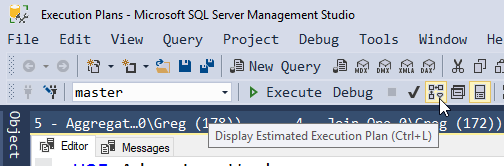
For a typical query, I can obtain the estimated execution plan, by hitting Ctrl-L, choosing the option in the Query menu, or clicking on the toolbar icon:

Let’s do this for the following query:

2018-12-06

SSMS: Query and results in separate tab in SQL Server Management Studio

SSMS: Query and results in separate tab in SQL Server Management Studio

Another simple tip for today. In SQL Server Management Studio (SSMS), query results are normally shown at the bottom of the query window.

This can greatly reduce the screen real estate both for the query, and for viewing the results.

In Tools, Options, Query Results, SQL Server, Results to Grid, there is an option to Display results in a separate tab. This can be very useful and generally you will also want to choose the extra option to Switch to results tab after the query executes.

2018-11-29