
Ssms

SSMS Tips and Tricks: Overview

SSMS Tips and Tricks: Overview

Now that I’ve finished posting my T-SQL 101 series, it’s time to start another blog post series.

A few years back, I created a shortcuts series that covered how to use SQL Server Management Studio (SSMS) proficiently. I eventually added that all into a free eBook. It was updated in March 2019.

You can get a copy of it here:

SQL Server Management Studio Tips and Tricks

SSMS version 21 is a huge shift from previous versions, so I thought it was time to revisit all the tips and tricks, to work out what still does or doesn’t work, and to add a bunch of new ones. V21 is based on the 64 bit version of Visual Studio, not the older 32 bit VS partner edition shell.

2025-05-05

SQL: Suggestion for SSMS -> Save as table

SQL: Suggestion for SSMS -> Save as table

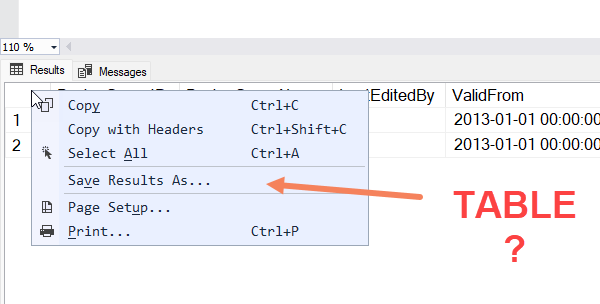
I often look at the results of a query in SSMS and want to save them off somewhere, and what I really want is a table. To do that, at present, I need to:

  • Right-click and use Save Results As to go to a CSV
  • Use the flat file import wizard (or something) to import the CSV

Now obviously, in some cases, if it was a SELECT query, I could add an INTO clause and just run the query again, but there are many many cases where I want to save the outcome of another type of query. It could also be that I just can’t run the query again for whatever reason.

2024-03-28

SQL: Previous SSMS Tips and Tricks Session

SQL: Previous SSMS Tips and Tricks Session

One of the more popular things I’ve ever written is my (free) SQL Server Management Studio Tips and Trips eBook.

I’ve had a few people asking why I haven’t done a video on it lately. I’m planning to do a series on it very soon.

In the meantime, here’s a session that I did with Amit and the people from Data Platform Geeks a while back: Tips and Tricks Session

2020-06-25

SQL: Removing or Editing Server Names and Credentials from SSMS connections

SQL: Removing or Editing Server Names and Credentials from SSMS connections

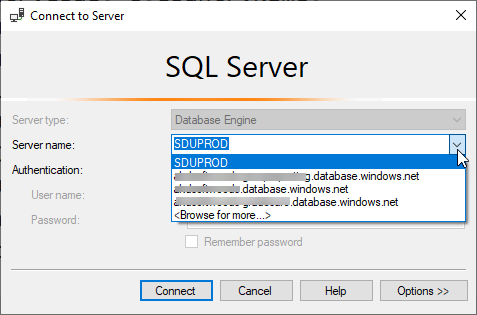
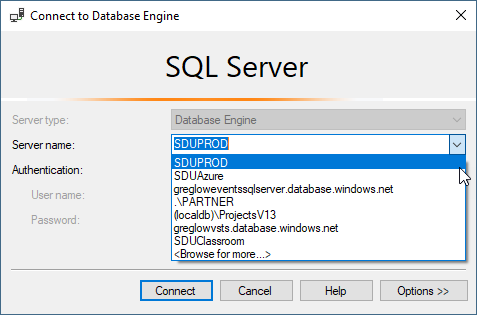
I use SQL Server Management Studio (SSMS) every day. When I first connect to a server, I’m presented with a list of servers to choose from:

Now this is really convenient, and in recent versions, it also remembers passwords for different ways of connecting. For example, I might have one server that I sometimes connect to using Windows credentials, and other times use a SQL credential for testing. It’s great that it remembers both.

2020-03-26

SQL: Fix - Missing Font Options in SQL Server Management Studio (SSMS) 17.x

SQL: Fix - Missing Font Options in SQL Server Management Studio (SSMS) 17.x

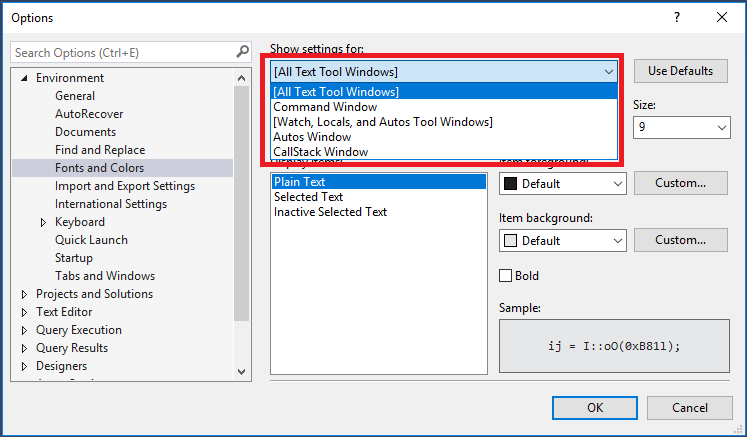
Ever since about version 17.3 of SQL Server Management Studio, I’ve had problems with fresh installs (as opposed to upgrades). I’ve been unable to set the fonts and colors. When I go into that dialog, I see the list as shown in the main image above.

All the normal option for windows that you can make settings for aren’t there.

On my current machine, I had just installed a v18 SSMS and it was fine. All font options, etc. were there. But I had to install v17.9.1 of SSMS side-by-side because the ssbdiagnose tool was missing on my machine. (I needed it for our new Service Broker course and v18 doesn’t install it for some reason).

2019-04-11

SSMS: Accessing script files and folders in SQL Server Management Studio

SSMS: Accessing script files and folders in SQL Server Management Studio

This one is a very simple and quick tip.

When working in SQL Server Management Studio (SSMS), I often need to open File Explorer in the folder where the script file is stored. Turns out there is an easy way to do that.

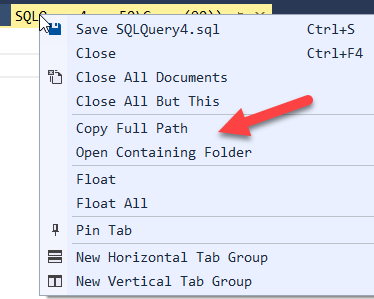
There are two interesting options when you right-click the tab at the top of a query window:

Note that you can open the containing folder for the script. You can also copy the path to the script into the clipboard.

2019-03-07

SSMS: Using Quick Launch in SQL Server Management Studio

SSMS: Using Quick Launch in SQL Server Management Studio

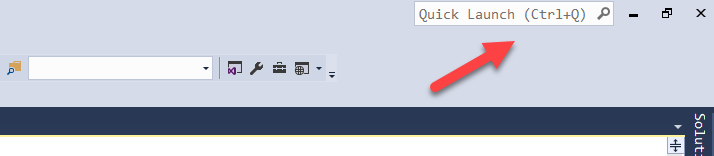
In SQL Server Management Studio (SSMS) for SQL Server 2016, a new search tool called Quick Launch was added. It’s this bar up the top:

Note that there’s another bar underneath it to the left. That’s not the Quick Launch bar. That’s the Find bar.

While the Find bar is useful for searching for text within queries, etc., the Quick Launch bar is useful for searching within SSMS itself.

2019-02-28

SSMS: Configure SSMS auto-recover time, and recover unsaved queries

SSMS: Configure SSMS auto-recover time, and recover unsaved queries

Every now and again, I come back to my laptop and find that it has rebooted for some reason, while I wasn’t expecting it. A prime cause of that is Windows Updates. I really, really wish that wasn’t so, but someone at Microsoft has decided that I must apply these updates. I have very little control over the time when that occurs. For example, if I’m on the road delivering presentations, there’s no “wait till I get home” option for Windows Updates.

2019-02-21

SSMS: Clear server list in SSMS connection dialog

SSMS: Clear server list in SSMS connection dialog

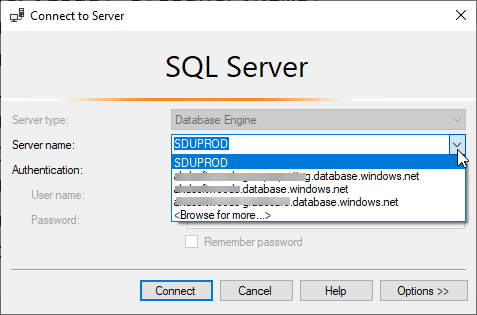
SQL Server Management Studio (SSMS) keeps a list of the server names that you have connected to, and prompts you with those when you drop-down the list while making a connection:

Eventually, that list can either become messy, it can include servers that don’t exist anymore, and so on. You might want to clear up the list.

To do this in early versions of SSMS, you needed to locate the SqlStudio.bin file from the Documents and Settings area in your user profile.

2019-02-14

SSMS: Change default text in new query window in SSMS

SSMS: Change default text in new query window in SSMS

In SQL Server Management Studio (SSMS), when you click New Query, a new query window is opened, but because it’s blank, what might not be immediately obvious is that it’s based on a template.

The location of the template depends upon the version, but for SSMS 17.6, you’ll find it in this folder:

C:\Program Files (x86)\Microsoft SQL Server\140\Tools\Binn\ManagementStudio\SqlWorkbenchProjectItems\Sql

The file is called SQLFile.sql.

One of the things that I often forget to do is to change my connection to the correct database. Let’s add a USE statement to make that obvious.

2019-02-07