
SSMS Tips and Tricks 2-7: Making sense of the colors in the SSMS scroll bar

In an earlier post, I described how I didn’t particularly like all the colors that are shown in the scroll bar now in SQL Server Management Studio (SSMS):
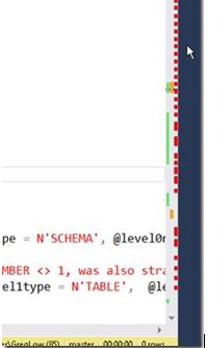
In that post, I described how to turn them all off, or at least how to kill off some of them. But, of course they are there for a reason.
Instead of turning them all off, you might decide to make sense of what they are there for. The colors that are displayed indicate the following:
- Red - this is showing where syntax errors appear in your code
- Blue - this shows where the cursor currently is. That’s helpful when you have scrolled but haven’t moved the cursor. However, given this is the most useful one for me, I have to say that when all the other colors are present, it’s the one that I find hard to locate.
- Yellow - this is indicating changes that you have made but have not yet saved.
- Green - this is showing saved changes.
- Maroon - this shows the location of “marks” - for us this means breakpoints.
- Black - this shows bookmarks.
And remember that you can change which ones are displayed by right clicking the scroll bar and changing its settings.
SSMS Tips and Tricks Free eBook
Want to become a wizard on using SSMS? My free eBook covers so many tips and tricks, including this one. You’ll find it, and many other free resources from us, here: https://sqldownunder.com/freestuff/
2025-06-14