Ssms

SSMS: Using Activity Monitor in SQL Server Management Studio

SSMS: Using Activity Monitor in SQL Server Management Studio

This is a quick tip but an important one. I see many people using SQL Server Management Studio (SSMS) and they aren’t aware of Activity Monitor.

While there are many clever things that we can do with queries, to interrogate the health of the system, don’t forget that there is quite a bit of useful information in Activity Monitor, and it’s easy to get to.

There are two basic ways to launch Activity Monitor. The first is to right-click the server in Object Explorer:

2018-09-13

SSMS: Using the built-in web browser in SQL Server Management Studio

SSMS: Using the built-in web browser in SQL Server Management Studio

SQL Server Management Studio (SSMS) is a flexible tool. One thing that often surprises people is that it hosts a version of Microsoft Internet Explorer, right inside the application.

Why would SSMS have a web browser I hear you ask?

Well this web browser lets browse URLs, and reference links, without leaving the tool.

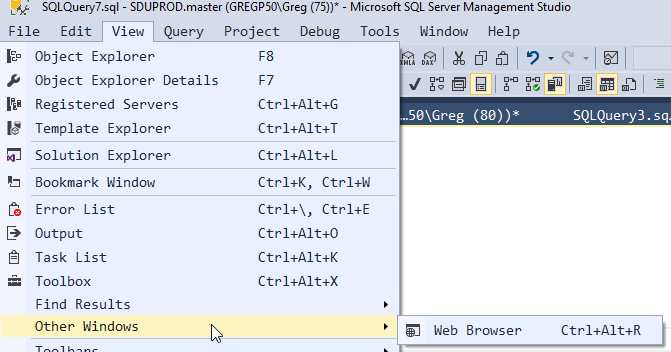
You can open it directly by choosing Web Browser from the View menu:

On my machine, it’s under the Other Windows section. In fact, it’s the only window there on my machine, which makes you wonder why it has a separate section in the first place.

2018-09-06

SSMS: Play a sound when a query completes in SSMS

SSMS: Play a sound when a query completes in SSMS

In a previous post, I mentioned that when a long running query completes, I might not have been waiting around for it, and so I wanted to know when it completed.

But sometimes I do wait around for a query to complete, yet I’m distracted by other things and don’t realize that the query has actually completed. That’s not surprising because if a query takes a long time, I’m probably going to go on with other work while that’s running.

2018-08-30

SSMS: Change connection in SQL Server Management Studio

SSMS: Change connection in SQL Server Management Studio

I commonly run into a few connection-related scenarios:

  • I’m working on a large query and need to run it against several servers, not concurrently, but one after the other.
  • I’ve just made a database connection, and got my query ready, only to discover that I’ve connected to the wrong server.

Either way, what I’ve seen people do in these scenarios is to:

  • Select all the text in the current query
  • Copy it
  • Open a new query window
  • Paste the code

That’s all good but SQL Server Management Studio (SSMS) has had a simpler way of doing this for quite a while.

2018-08-23

SSMS: Viewing client statistics in SQL Server Management Studio

SSMS: Viewing client statistics in SQL Server Management Studio

While SQL Server is quite fast at executing queries, when you are connecting from a client application like SQL Server Management Studio (SSMS), you might wonder how much time SQL Server spent executing the query, as opposed to how long the communication with the server took.

This type of information is available in the Client Statistics.

Let’s see an example. If I connect to a server in an Azure data center, I’ll have higher latency than for one in my own site. That will affect the wait time for a server response.

2018-08-16

SSMS: Adding additional parameters to connections in SSMS

SSMS: Adding additional parameters to connections in SSMS

When I am writing my own code using a .NET (or other) language, I have a great deal of control of how the connection string that my application uses to connect to SQL Server is configured.

In particular, I might need to add another parameter or two.

As a simple example, you might have a multi-subnet Availability Group, spread across a production site and a disaster recovery site. It’s common to then have an Availability Group Listener in both subnets.

2018-08-09

SSMS: Using "surrounds with" snippets in SQL Server Management Studio

SSMS: Using "surrounds with" snippets in SQL Server Management Studio

In previous posts, I’ve been talking about how to use snippets in SQL Server Management Studio (SSMS) and how to create your own. There are several types of snippets and one of the special types of snippets that I want to mention are the “surround with” snippets.

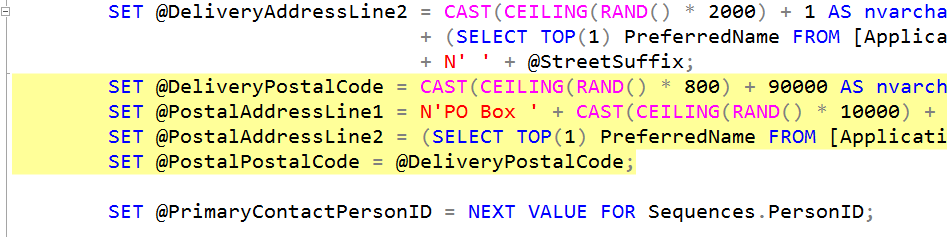
If you look at the following block of code:

Imagine that you want to execute the four highlighted lines only when a condition is true. If I hit Ctrl-K and Ctrl-S while they are highlighted, I’m prompted with this:

2018-08-02

SSMS: Using bookmarks in SQL Server Management Studio

SSMS: Using bookmarks in SQL Server Management Studio

In a previous post, I was discussing how outlining can be helpful with navigating around within a large T-SQL script file.

If you were trying to do that within a Microsoft Word document, the most common thing to use is bookmarks, and SQL Server Management Studio (SSMS) has them as well.

Bookmarks are simply placeholders within a script. (They can also apply to other types of document within SSMS). Where I find them very useful is when I’m working in two or three places within a long script at the same time. Perhaps I’m working on a function, and also on the code that calls the function. By using bookmarks, I’m not flipping endlessly around the script file, and can jump directly from placeholder to placeholder.

2018-07-26

SSMS: Code outlining in SQL Server Management Studio

SSMS: Code outlining in SQL Server Management Studio

For some years now, SQL Server Management Studio (SSMS) has had the ability to use code outlining, the same way that other Visual Studio applications can.

This can be very useful when you are trying to navigate around a large script file.

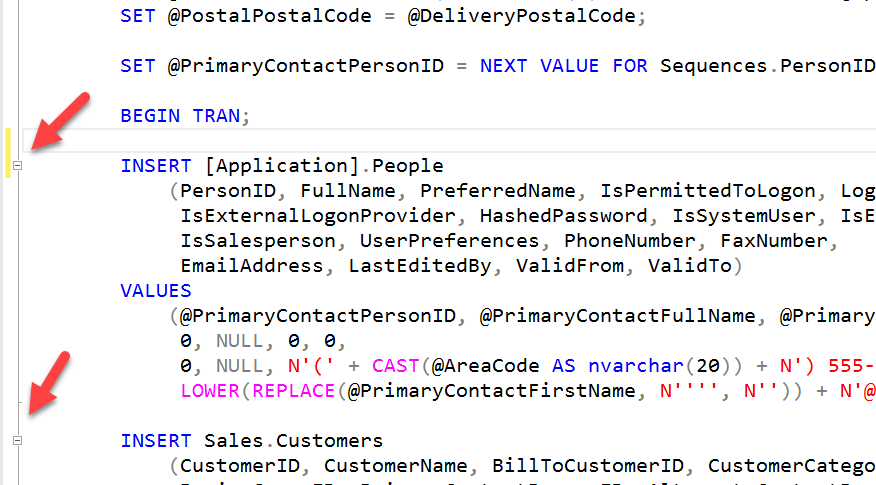
The simplest usage is to collapse or expand a region of code. Note that in the following script, code regions have been automatically added by SSMS:

This allows us to click on the outline handles, and collapse the code:

2018-07-19

SSMS: Manually prompting for and refreshing Intellisense in SSMS

SSMS: Manually prompting for and refreshing Intellisense in SSMS

Intellisense is one of the best things that’s ever been added to Visual Studio or to SQL Server Management Studio (SSMS). It’s hard to remember back to before it was added, or how we worked then.

I had a young friend from the United Kingdom who had just completed a Computer Science degree and one of the things that he was most proud of, is that he knew so many HTML tags and which attributes went with which tags. When I showed him HTML Intellisense in Visual Studio, I think he was about to cry.

2018-07-12